Monday, 17 August 2015

How to Create SEO Friendly Permalinks For a Blogger Posts

Permalinks are the permanent links to a post page. Blogger automatically generates a permalink based on the title of your post. Permalinks provide information to the viewer about the kind of content being pointed to.

Permalinks create permanent links to your Blogger posts which are indexed by search engines such as Google. Search engines use permalinks to categorize posts. Browsers use permalinks to help navigate to your posts. When you hover over a permalink in your browser you can read the post name in the status bar.
The permalink for this article is:
http://addictofblogging.blogspot.com/2015/08/How-to-Create-SEO-Friendly-Permalinks-For-a-Blogger-Posts.html


Tips For Working With PERMALINKS In BLOGGER

While other blogging software such as Wordpress allows the user to edit permalinks Blogger has no such feature. For this reason care needs to be taken when creating titles for your posts as the permalink generated from the title can't be changed later. While your article is in draft form you can continue to change the title as many times as you like. However, once the permalink is assigned at the point that the post is published it remains the same no matter how many times you change the title of your post.

Before in Blogger, you had only AUTOMATIC PERMALINKS which allowed you to add character less than 35-40 automatically. For an instance a Long Title such as the one below would result in a shortened permalink which would lose the important fact that this post is related to working with Blogger:
Example:
http://addictofblogging.blogspot.com/2015/08/How-to-Create-SEO-Friendly-Permalinks

Should be like this !
http://addictofblogging.blogspot.com/2015/08/How-to-Create-SEO-Friendly-Permalinks-For-a-Blogger-Posts
Fortunately now Blogger recently has a facility of adding longer Title detail (more than 35-40 characters) as a permalink. It is a CUSTOM PERMALINK. You can add Title characters manually as many as you want.

Once the post is published you can change the title "How to Create SEO Friendly Permalinks For Your Blogger Posts." as many times as you like. The permalink, however has remained the same even though the title has changed.

You can use this trick to create eye catching and memorable titles. It will also ensure that the permalink reflects a concise title and that unnecessary details in the permalink are removed. Creating concise permalinks is important for Search Engine Optimization. Read more about Search Engine Optimization in the blog tutorial Tips for Search Engine Optimization.

Share it if it helped you. Also like us on facebook too. Enjoy!

Remove All Web History from Google

You may don't know that Google is Tracking your search keyword you hit on Google. If you open your google account when you search anything on Google Search Engine, secretly Google track your all of search term you hit on Google. If you don't stop the Web history it can be automatically saved in your Google Web History. It track data from all Google Products. So, take a minute to read this Post and remove all web history from Google that in fut Google won't able to track your data from Google Porducts.

We already know that Google is the Top Ranked site over the Internet world at the time with High rated Services like Youtube, Adsense and Adwords, etc. Google also have a feature to record your Web History like what Keyword you search on Google. If your Google Web History is on, it means your search Keywords is tracked by Google and save into your Google Web History. You can also download your entire Google web history and also delete entire history at one click. If you want to off this feature or remove all of your Web history from Google web history, you can apply below steps.

Steps To Remove All GOOGLE Web History:

Step-1. Login to your Google Account and go to Google History PAGE HERE.

Step-2. On Right Top corner, you can see the option MENU. Clicking on it, you will found a list of options - Delete Options, Settings, Download Searches, Help and Send Feedback. In Setting option, you can find - a, Manage Activity and b, Show More Controls. Clicking on Show More Control, you can manage all these options - YOUR SEARCHES AND BROWSING ACTIVITY, PLACES YOU GO (PAUSED), INFORMATION FROM YOUR DEVICES (PAUSED), YOUR VOICE SEARCHES AND COMMANDS (PAUSED), VIDEOS YOU SEARCH ON FOR ON YOUTUBE, VIDEOS YOU WATCH ON YOUTUBE, ETC.
Step-3. Select Delete Option, You will get below screenshot;
Step-4. Now select Advanced option from above screenshot and click on delete. A pop box will appear as below;
Step-5. You Drop down Menu, just select drop down menu of your need. Click on DELETE button.
Step-6. Once deleted you will be promp to login again.
Step-7. After inserting Password your All web history from Google will be deleted and the deleted data can't be recovered back. Please see below screenshot.

Sunday, 16 August 2015

5 Epic Ways to Get More Traffic to Blog/Website

As all of us know we have many Newbie Bloggers who don't know about SEO and also don't know how they rank their Blog/Website at the Top of Google Search result. So we love to explain the 5 Epic Ways to get More Traffic to Blog/Website that definitely work and increase your Blog/Website Traffic and we know that all our Visitors Traffic means "Money". So, here we reveal the Top 5 Epic ways to get more Traffic to Blog/Website that can help you to improve your Off Page SEO.

To learn more about Off Page SEO, please visit this LINK.

1. Yahoo Answers:

Yahoo answers is basically a Platform where Individual Ask any Questions that can be answered by Many Individual peoples. It is Owned by Yahoo and also called YAHOO Q & A. Yahoo Answers can help million of People via Comments and References, So YAHOO ANSWERS is one of the best place to divert traffic on your Blog/Website. This is our first recommended Tips because it can also help you to Indexed your Web pages in Yahoo Search Engine.

Yahoo Bing

You know that Yahoo Answers have daily millions of Visitor and Daily New Q/A will updated. So whatever your Blog/Website niche and search on similar topic in Yahoo Answers and give suitable solutions in your answers and also give your Blog/Website link where User can get the answer of his Problem.

2. YouTube Videos:

YouTube is the Best Video Sharing Site and have Billions of Views as Per day Basis. YouTube has #3 Alexa Rank means third most Viewed website in the World. So, now straight up to our Topic. Create a Youtube channel and post Videos on whatever you write in your post and create a link to your post. When a User Watch your Videos, obviously they can also check your Blog/Website as well as and Redirected to your Blog/Website. This can also make a SEO Benifit to get Traffic from the Most influenced Websites.

3. Facebook:


Facebook is the Best way to connect peoples on the Internet and World's number-1 Social networking Websites. Facebook plays a very important Role in SEO because many of popular Websites get a Referral Traffic from Social Media giant Facebook. It is the greatest platform to drive Traffic to Websites and other Social media. In SEO it is also a first recommended Social media to promote your Blog/Website via Facebook Ads, Facebook Pages, and through other ways. Now what we suggest is, just post regularly on your Facebook Page and Interact with your Fans and Solve their Problems.

Secrets of Facebook Marketing

4. Commenting On Other Websites And Blogs:

Commenting on other's Blogs and Websites is the most used and Epic method to get Traffic to your Blog/Website. It can improve your Search Engine Performance because of Google Juice. Don't worry about no-follow Backlinks, just leave useful Comments on High Quality Blog/Websites or comment on Blog/websites having more Traffic.

Note: Do not Comment to get only Traffic and Insert your URL, but just leave a suitable Comment that is usefull for the Readers. Your Comments should have Value to Someone.

5. Forum Comment:

Comment on popular forum are very Elite way to get Do-Follow Back link as well as Traffic. Because it has free registration and allow you to comment in Forum's Post according to your Answer Score. There are many popular Forums like Digital Forum, Black Hat World, and more. So search topic in forum that is similar to your blog/website niche and comment in forum and get more Traffic to your Blog/Website.

Dear readers, many of successful Bloggers/Website holder use their Own methods for SEO and get Traffic on their Blogs/Websites. Here we discussed about the Traffic, and the Top 5 best Tips for SEO. We think the tips is Simple and Easy and you can apply it to your Blog/Websites to Drive a Massive Traffic to your Blogs/Websites. If you at least try above 5 killer SEO Tips to get more Traffic to Blogs/Websites, definitely you can see improvement in your Blogs/Websites.

Share if you like our post and like us on facebook and subscribe us. Enjoy !

Free Feedjit Live Traffic Feed For Blogger

Do you want to see where Traffic is coming from on your Blogger Blog (Blogspot Blog) ?

Live Traffic widget can help you to show visitor's Traffic flow.

So you can see in real time, WHO, FROM WHERE coming on your site and ON WHICH ARTICLE !!

Feedjit is a free tracking tool that tracks visitors to a blog in real time and identifies what pages are visited. In this Blogger tutorial you will learn how to add a Feedjit widget to your blog which will track where visitors originate from and what pages they viewed. Adding a Feedjit widget to your Blogger blog is easy and takes less than 5 minutes. This tutorial is suitable for all Blogger bloggers (Blogspot beginners).

Feedjit monitors traffic to your site and ranks it based on popularity and relevance against the traffic received by other Feedjit users in your local area. There is a choice of 4 different widgets: Live Traffic Feed, Live Traffic Map, Recommended Reading, and Page Popularity. Each of these widgets has different functions.
Feedjit Live Traffic Feed Widget for Blogger

Places a widget on your Blogger blog of the last 10 visitors. By clicking on the real time link you can actually view the last 50 or so visitors along with the keyword search phrase used to find your site. The Feedjit's Live Traffic Feed shows statistics in real-time about:


The city and country your visitors are in
The website they arrived from, if any
The page they visited on your website
Which external link they clicked to leave your site, if any
Feedjit Traffic Map

The Traffic Map widget places visitors to your site on a world map according to their physical location

Feedjit Recommended Reading
The Recommended Reading widget makes suggestions to visitors about what other blog posts they might be interested in based on general page popularity

Feedjit Page Popularity
The Page Popularity widget lists the 10 most popular pages that have been accessed by visitors on that day.

How to Add a Feedjit Live Traffic Feed Widget (Gadget) to Blogger:

Step-1. Visit Feedjit
Step-2. Select Live Traffic Feed.
Step-3. Now Click on Select a color scheme, Select widget width (pixels), manage Number of Visitors feedjit shows and Customize your Color scheme. This will allow you to enter colors to match the theme of your blog, Just edit the color of your need.

And then just select Blogger Blog from Drop down menu to install Feedjit on your Blog and Click on GO button. You will see below screenshot. Now you will have two steps installation process. Step-1, Clicking button on Step-1, it will take you to Sign in to BLOGGER and Step-2, If you are already signed in and just click on step-2. Installation is done.
If above doesn't work, you can sign in Blogger/Blogspot and follow the instructions:

Step-1. Navigate to Layout > Page Elements in your blog if that page is not already open
Step-2. Select Add a Gadget in the Sidebar and then HTML/Javascript
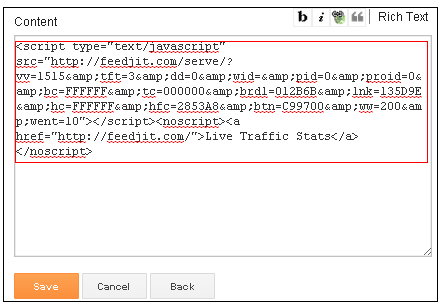
Step-3. Paste the code by placing the mouse in the box and right clicking and selecting paste
<script type="text/javascript" src="http://feedjit.com/serve/?vv=1515&amp;tft=3&amp;dd=0&amp;wid=&amp;pid=0&amp;proid=0&amp;bc=FFFFFF&amp;tc=000000&amp;brd1=012B6B&amp;lnk=135D9E&amp;hc=FFFFFF&amp;hfc=2853A8&amp;btn=C99700&amp;ww=200&amp;went=10"></script><noscript><a href="http://feedjit.com/">Live Traffic Stats</a></noscript>
Step-4. Save the widget and then using the drag and drop feature of Blogger move it to your desired location.

Step-5. Note HTML/Javascript widgets are best placed after your other widgets for faster loading.
Save Template

Click on View Blog to view your newly created Feedjit widget

Click on Options in the Feedjit widget and then Ignore My Browser otherwise the widget will record your visit each time you view your blog. The option on the widget will now change to Stop Ignoring Me which you can reverse by clicking on the link again.If you use more than one browser you will need to tell Feedjit to ignore you for each browser.

This Blogger tutorial has discussed how to add a Feedjit Live Traffic Feed widget, gadget or button to Blogger to track where visitors are being directed from and what posts they are most interested in. A Feedjit Live Traffic Feed will help you learn about the visitors to your blog and what search phrase they used to arrive. To add a Feedjit Live Traffic Feed widget to Blogger is simple and takes less than 2 minutes to install.

Enjoy! If you like Our Post just follow us and Subscribe.

How to Add a Blogger Blog (Blogspot Blog) to Bing Webmaster Tools

Although Bing (formerly MSN Live Search) gets a fraction of search engine traffic compared to Google and Yahoo it is still worthwhile submitting your Blogger sitemap (Blogspot sitemap) and blog to Bing. The advantages of adding your blog to Bing is that you will learn more about how your site is crawled and what keywords visitors use to access your blog pages.

This Blogger tutorial covers the steps involved to add your Blogspot blog to Bing (MSN). Part One deals with how to add a site to Bing Webmaster Tools while part two takes you through the steps to add a Blogger sitemap to Bing Webmaster Tools. Both these tutorials are rated easy and can be performed by anyone using Blogger.

Add Blogger Blog (Blogspot Blog) To Bing Webmaster Tools

Step No. 1: Create an account or sign into Bing at MSN. If you have a hotmail account you will already have access to Bing Webmaster Tools .

Step No. 2: Navigate to the Bing Webmasters Tools page.
Step No. 3: Installing Skylight is purely optional. Silverlight is Microsoft's competitive product for Adobe Flash. Try it if you wish as it adds some extra functionality but for the purposes of this Blogger tutorial it is not necessary.
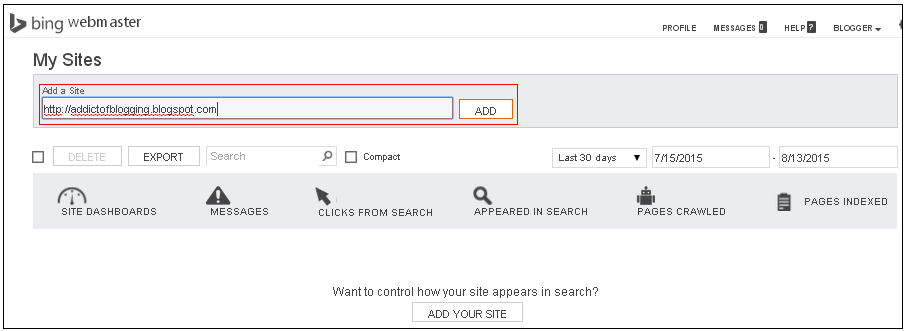
Step No. 4: From the Bing Webmaster home page click on 'Add Site'.
Step No. 5: Fill in the URL address of your Blogger blog eg. http://addictofblogging.blogspot.com

Step No. 6: Click on Submit.
Step No. 7: Your blog will now appear on the list of added sites under your Bing Webmaster account.
Step No. 8: Click the Verify Site link at the end of your blog.
Step No. 9: Choose Option 1. <meta name="msvalidate.01" content="F6A6E7BFBDAA07EFA89B25FA2F696856" /> or option 2 - Like as shown in Example above,
Step No. 10: Copy the meta tag code that appears in the dialog box by right clicking on it with your mouse and selecting copy. Keep the Bing Webmaster Tools window open as we will be returning.
Step No. 11: Login to your Blogger account if not already logged in using a different browser window.
Step No. 12: From the Dashboard go to Design > Edit HTML
Step No. 13: Paste the code below the <head> tag and before <b:skin> and as early as possible
For the new generation of default Blogger templates I suggest placing the code just below these two lines:
<head>
<meta content='IE=EmulateIE7' http-equiv='X-UA-Compatible'/>
For earlier generations of default Blog templates and custom templates I suggest you place the Bing Webmaster meta tag after these lines:
<head>
<b:include data='blog' name='all-head-content'/>
Step No. 14: Click on Save Template
Step No. 15: Return to Bing Webmaster and click on the Verify button
Step No. 16: If successful your Blogger blog will be added to the list of sites. Information about your blog will show not available as it takes at least 48 hours to activate.
Step No. 17: Click on your blog and you will be taken to the site information screen.

How To Add A Blogger SITEMAP (Blogspot SITEMAP) To BING Webmaster

Step No. 1: Sign in to Bing Webmaster if not already signed in.
Step No. 2: Click on your Blogger blog from the list of sites.
Step No. 3: Go to Dashboard on the left hand side.
Step No. 4: An Add Sitemap dialog box will be seen. Enter the following URL of the default posts feed of your Blogger blog eg.
http://yourblogname.blogspot.com/feeds/posts/default
Step No. 5: Replace the yourblogname with the name of your blog
Step No. 6: Click on the Submit button
Step No. 7: If you have entered the details of your sitemap correctly you will now be presented with a added sitemap success screen. Just go to Dashboard>>Configure My Site. Click on Sitemap, you will see the the status of your blog sitemap. Now the Status is success. Note that to indexed it may take up to 48 hrs. Yuppy mine took only few minutes. Cheers!

In this Blogger tutorial we have taken you through the steps involved in submitting a Blogger blog (Blogspot blog) to Bing Webmaster Tools (MSN). We have also shown you how to add a Blogger sitemap to Bing Webmaster Tools by using the default Blogger posts feed.

Enjoy!