Monday, 21 October 2013

Top Commentators Widget with Avatars for Blogger

The commentators are a fundamental part of any blog, since they are the ones that give life to the blog, opening and replying to discussions which leads to more activity in the posts.
how to add top commenters widget to blogger

It is therefore very important to know which are the most active users of your blog, the users who leave more comments, and for this reason, today I present a great method to display a list with the top commentators.

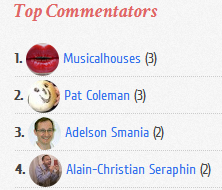
The gadget will look something like this:

add top commentators widget to blogger

This Top Commentators gadget comes with user's avatar and is done with JavaScript.

How to Add the Top Commenters Gadget to Blogger


1. To add this gadget, you have to go to Layout, click on Add a Gadget link.

2. Select the HTML/JavaScript gadget and copy/paste within the empty box the following code:
<style type="text/css">
.top-commentators {
margin: 3px 0;
border-bottom: 1px dotted #ccc;
}
.avatar-top-commentators {
vertical-align:middle;
border-radius: 30px;
}
.top-commentators .commenter-link-name {
padding-left:0;
}
</style>
<script type="text/javascript">
var maxTopCommenters = 8; 
var minComments = 1;     
var numDays = 0;         
var excludeMe = true;    
var excludeUsers = ["Anonymous", "someotherusertoexclude"]; 
var maxUserNameLength = 42;
//
var txtTopLine = '<b>[#].</b> [image] [user] ([count])';
var txtNoTopCommenters = 'No top commentators at this time.';
var txtAnonymous = '';
//
var sizeAvatar = 33;
var cropAvatar = true;
//
var urlNoAvatar = "https://blogger.googleusercontent.com/img/b/R29vZ2xl/AVvXsEilLiUSYs7d07zIVwzbyJuQsDK76dkjrocB4vh_6uU31nxRf5F-Z7bFEwlk2uaU64DVynpdoVVXN_p1uRYI94EObDxgQxkguwvd-9d6-FbsRAvVTO8p-ZtTcTn6Em7ohBSOXpwF6OaVM7C4/s1600/avatar_blue_m_96.png" + sizeAvatar;
var urlAnoAvatar = 'https://blogger.googleusercontent.com/img/b/R29vZ2xl/AVvXsEjGlqFtpDaR3WeDcCKykeHusXq8GC4uqryn-47ko3bqi9pl6myxe45_TLi_HE9jK_3wVeeh9unWXAhCbH7S4qgCFV_6Li72w_28MRnpy18AEO37Ta_eADcHUNRkbjNHNhXUKMWpSF7a6GHo/s1600/avatar1.png' + sizeAvatar;
var urlMyProfile = '';
var urlMyAvatar = '';
if(!Array.indexOf) {
 Array.prototype.indexOf=function(obj) {
  for(var i=0;i<this.length;i++) if(this[i]==obj) return i;
  return -1;
}}
function replaceTopCmtVars(text, item, position)
{
  if(!item || !item.author) return text;
  var author = item.author;
  var authorUri = "";
  if(author.uri && author.uri.$t != "")
    authorUri = author.uri.$t;
  var avaimg = urlAnoAvatar;
  var bloggerprofile = "http://www.blogger.com/profile/";
  if(author.gd$image && author.gd$image.src && authorUri.substr(0,bloggerprofile.length) == bloggerprofile)
    avaimg = author.gd$image.src;
  else {
    var parseurl = document.createElement('a');
    if(authorUri != "") {
      parseurl.href = authorUri;
      avaimg = 'http://www.google.com/s2/favicons?domain=' + parseurl.hostname;
    }
  }
  if(urlMyProfile != "" && authorUri == urlMyProfile && urlMyAvatar != "")
    avaimg = urlMyAvatar;
  if(avaimg == "http://img2.blogblog.com/img/b16-rounded.gif" && urlNoAvatar != "")
    avaimg = urlNoAvatar;
  var newsize="s"+sizeAvatar;
  avaimg = avaimg.replace(/\/s\d\d+-c\//, "/"+newsize+"-c/");
  if(cropAvatar) newsize+="-c";
  avaimg = avaimg.replace(/\/s\d\d+(-c){0,1}\//, "/"+newsize+"/");
  var authorName = author.name.$t;
  if(authorName == 'Anonymous' && txtAnonymous != '' && avaimg == urlAnoAvatar)
    authorName = txtAnonymous;
  var imgcode = '<img class="avatar-top-commentators" height="'+sizeAvatar+'" width="'+sizeAvatar+'" title="'+authorName+'" src="'+avaimg+'" />';
  if(authorUri!="") imgcode = '<a href="'+authorUri+'">'+imgcode+'</a>';
  if(maxUserNameLength > 3 && authorName.length > maxUserNameLength)
    authorName = authorName.substr(0, maxUserNameLength-3) + "...";
  var authorcode = authorName;
  if(authorUri!="") authorcode = '<a class="commenter-link-name" href="'+authorUri+'">'+authorcode+'</a>';
  text = text.replace('[user]', authorcode);
  text = text.replace('[image]', imgcode);
  text = text.replace('[#]', position);
  text = text.replace('[count]', item.count);
  return text;
}
var topcommenters = {};
var ndxbase = 1;
function showTopCommenters(json) {
  var one_day=1000*60*60*24;
  var today = new Date();
  if(urlMyProfile == "") {
    var elements = document.getElementsByTagName("*");
    var expr = /(^| )profile-link( |$)/;
    for(var i=0 ; i<elements.length ; i++)
      if(expr.test(elements[i].className)) {
        urlMyProfile = elements[i].href;
        break;
      }
  }
  if(json && json.feed && json.feed.entry && json.feed.entry.length) for(var i = 0 ; i < json.feed.entry.length ; i++ ) {
    var entry = json.feed.entry[i];
    if(numDays > 0) {
      var datePart = entry.published.$t.match(/\d+/g);
      var cmtDate = new Date(datePart[0],datePart[1]-1,datePart[2],datePart[3],datePart[4],datePart[5]);
   
      var days = Math.ceil((today.getTime()-cmtDate.getTime())/(one_day));
      if(days > numDays) break;
    }
    var authorUri = "";
    if(entry.author[0].uri && entry.author[0].uri.$t != "")
      authorUri = entry.author[0].uri.$t;
    if(excludeMe && authorUri != "" && authorUri == urlMyProfile)
      continue;
    var authorName = entry.author[0].name.$t;
    if(excludeUsers.indexOf(authorName) != -1)
      continue;
    var hash=entry.author[0].name.$t + "-" + authorUri;
    if(topcommenters[hash])
      topcommenters[hash].count++;
    else {
      var commenter = new Object();
      commenter.author = entry.author[0];
      commenter.count = 1;
      topcommenters[hash] = commenter;
    }
  }
  if(json && json.feed && json.feed.entry && json.feed.entry.length && json.feed.entry.length == 200) {
    ndxbase += 200;
    document.write('<script type="text/javascript" src="http://'+window.location.hostname+'/feeds/comments/default?redirect=false&max-results=200&start-index='+ndxbase+'&alt=json-in-script&callback=showTopCommenters"></'+'script>');
    return;
  }
  // convert object to array of tuples
  var tuplear = [];
  for(var key in topcommenters) tuplear.push([key, topcommenters[key]]);
  tuplear.sort(function(a, b) {
    if(b[1].count-a[1].count)
        return b[1].count-a[1].count;
    return (a[1].author.name.$t.toLowerCase() < b[1].author.name.$t.toLowerCase()) ? -1 : 1;
  });
  var realcount = 0;
  for(var i = 0; i < maxTopCommenters && i < tuplear.length ; i++) {
    var item = tuplear[i][1];
    if(item.count < minComments)
        break;
    document.write('<di'+'v class="top-commentators">');
    document.write(replaceTopCmtVars(txtTopLine, item, realcount+1));
    document.write('</d'+'iv>');
    realcount++;
  }
  if(!realcount)
    document.write(txtNoTopCommenters);
}
document.write('<script type="text/javascript" src="http://'+window.location.hostname+'/feeds/comments/default?redirect=false&max-results=200&alt=json-in-script&callback=showTopCommenters"></'+'script>');
</script>
3. Now you just have to save changes and you're done!

Configuration

- To modify the number of users displayed in the gadget, look for var maxTopCommenters = 8; and change 8 with any number you want.
- To change the avatar size of the commenters, look for var sizeAvatar = 33; and change number 33 with the number of pixels you want. - To hide your name or some other username, replace the someotherusertoexclude text between the quotes (to add more, add another comma after the text in red, then type the username you want to exclude between the quotes)

Sunday, 20 October 2013

Stop Google from "fixing" pictures that are loaded through Blogger

This article is about how you can stop Google from automatically "enhancing" pictures that are loaded in Blogger - even if you do not have a Google+ account.


Google has started automatically "fixing" new pictures as they are added to your blog

In May 2013 Google added the Auto-Enhance and Auto-Awesome features to Google+ Photos. These are meant to make your pictures look better, ie more like those which are taken by professional photographers.

These features are turned "on" by default. And because:
  • Photos loaded using Blogger are stored in Picasa-web-albums, and
  • Picasa-web-albums and as Google+ Photos actually have the same collection of photos - yes, even for accounts that do not use G+,
the effect is that auto-enhance and auto-awesome are applied to all images loaded through Blogger's post-editor, header-picture loading tool and gadget-picture loading too;.


Why is this a problem

In many cases, these features work as they are intended to, and the illustration that is shown on your blog is more attractive than the one you uploaded - it's brighter, clearer and loads faster.

But there are some situations where the effect of the auto-enhancement is not good. These include:
  • Pictures with some transparency - which is auto-corrected to either light grey or black
  • Pictures that are intended to be dull / dark / shady - these are automatically lightened.]
  • Pictures that are loaded at a certain photo quality - are automatically downgraded to a lower quality (which is fine for viewing on screen, but not so fine if you actually want to use your blog to share high-quality photos).

Blogger users who have a non-white background, and who deliberately upload images with a transparent background so their blog background will "show through" the image have been particularly annoyed by this.   And I have been less than impressed by the faint grey "wash" added to the background of some of my diagrams - for example:

The left-hand picture was auto-enhanced, the right hand one was not


How to turn off photo auto-enhance if you use Google+

If your blog - and the account you use to post to the blog - is linked to your Google+ profile, then you can stop your photos from being changed by:
  • Opening the Google Plus settings tab.
  • In the "Photos" section, un-ticking "Automatically enhance new photos"

This stops the auto-enhance and auto-awesome tools being applied to any new photos that you upload from now onwards using Google+ Photos, Picasa-web-albums or any Blogger feature that lets you load a picture (the post-editor, the header widget settings, the picture gadget settings).

Alternatively, you can turn off the auto-enhance and auto-awesome changes that are made to specific pictures by by finding them in Google+ photos and un-ticking "Auto-enhance" in the "More" menu.


How to turn off photo auto-enhance if you do not use Google+

There is currently no option in Piscasa-web-albums to turn off the auto-enhance feature.
This means that if you load photos to either Blogger or Picasa-web-albums, using a Google / Blogger account that is not linked to a Google+ profile, you cannot stop auto-enhance from happening.

Some people have suggested that the way around this is to:
  • Temporarily link the blog to a Google+ profile (either your own one, or one that you create just for the purpose - eg "Mr John Smith")
  • Turn off the auto-enhance feature using the Google+ procedure listed above
  • Fix up the damage to any pictures that you loaded through Blogger or Picasa-web-albums between mid May 2013 and today by finding them in Google+ photos and un-ticking "Auto-enhance" in the "More" menu.
  • Unlink the blog from the Google+ profile.

However I do not believe that this is entirely correct:   my tests suggest that whether or not photos are auto-enhanced is controlled by the settings on the Google+ account that is used to upload the pictures, no matter whether the blog is attached to a Google+ profile or not.

(I've been testing this a lot because I have a number of blogs that are linked to Google+ Pages that are in my personal profile, but which I generally post to using a different Google account that has a more generic name like "Editor, Table Quiz Helper", and it's own separate set of Picasa-web-albums:   I want to be able to hand these accounts on to my successor when I leave the community groups that they are for.)

Previously, the main options that I identified and recommend were:

However another option, which I now think is better, is to:

  • Make a Google+ Page for the blog
  • Give that Page it's own login-name and password - effectively turning it into a separate new Google account
  • Give that new Google account administrator rights to the blog
  • Make the setting change described above in "How to turn off photo auto-enhance if you use Google+" while you are logged in as the new Google account
  • Use the new Google account to load photos to the blog:   this will mean that the photos are placed in the Google+ Photos album associated with the page, and so you can access them using either Picasa-web-albums or Google+ Photos.


Other Options

If you really don't want to use even a minimal Google-plus account, then your options are limited.

Use another picture host

You could load the pictures that you want to use in your blog to another picture-hosting service (eg Flickr) - however doing this means that you posts will not have a thumbnail image.

Minimise the damage

If you make sure that pictures which you load have a white background (or whatever colour background your blog has) instead of being transparent, then the impact of auto-enhance will be a lot less.    I have found that if you use a .png file rather than a .jpg, the background is white instead of transparent.   (This is fine for me, because I use white blog backgrounds.)

Wait for things to change

A very simple fix would be for Picasa-web-albums to use default values of "No" instead of "Yes" for auto-enhance and auto-awesome, or to set these up as settings in the PWA profile.

Another option is that Google may improve the enhancement algorithms (ie rules which control how pictures are "touched up").

Fingers crossed, one of these will happen soon.


Related Articles:

Giving another Google account Administrator rights to your blog

Turning a Google+ Page into a separate Google account

Post.snippet and post.thumbnail - how they are derived from your blog post

How to add a picture to your blog, using the picture gadget

Making a Google+ profile for the Google account that you use to upload the pictures,

How to let another person load pictures to your Picasa-web-album

This article shows how to let another person (Google account) upload pictures to your Picasa-web-albums:   this is one possible way to work around the issues with Google's photo auto-enhance feature.

Picasa-web-albums and your Google account

Previously I've described Picasa desktop vs Picasa-web-albums, and noted that you can upload pictures to your PWA folders using either of the two pieces of software.

Each album and folder in Picasa-web-albums belongs to one Google account (which may or may not have an associated Google+ account).

Google now provide a tool to transfer Picasa-web albums from one account to another - but only once ever in the life-time of the album.   You cannot transfer ownership to one person now, and to another person in  a year's time (which is quite different to the way you can easily transfer other aspects of your blog to a new owners).

And Google also provide a way for an account owner to let another Google account add photos to the owners albums.


How to let another Google account add photos to one of your  Picasa-web-albums.

Log in to Picasa-web-albums using the Google account that owns the photo-albums and other related things (eg blogger administration rights), and which you want to be the main owner/administrator of your photos.
(See Stop being automatically redirected from PWA to Google+ Photos if you have difficulty staying in Picasa-web-albums.)

View the  individual album that you want to allow someone else to add photos to.

Click the Share button in the right-hand panel.

If your account does not have a Google+ Profile, then clicking the Share button opens the basic Picasa-web-sharing invitation.   In it:
  • Enter the email address of the Google account that you want to give upload permissions to, and any message that you want to send them., 
  • Tick "Let people I share with contribute photos".   
  • Then click Share Via Email.

Standard Picasa-web-albums album sharing settings screen


If your account has a Google+ Profile, then clicking the share button open a "Share on Google+" window.  To use this to give someone permission to upload to the album:
  • Remove any suggested circles
  • Enter the Google account name(s) that you want go give upload permissions to.
  • Click Share
  • When you return to the standard Picasa-web-screen, in the right-hand-panel, click the "allow uploads" icon to the right of the name that you entered.

Google+ Profile photo-album sharing request screen


Allow shared-with users to upload pictures to your album


What the people you have invited will see

The people who you have invited to contribute pictures to your Picasa-web-albums will get either an email message or a Google+ notification telling them about the permission you have given them.

When they go into Picasa-web-albums, they will see the album that you have shared listed as an album that they can see - and they will have an Add Photos link where they can upload pictures in the same way they would add photos to their own albums.


Sharing several or all your albums at once

Picasa does not seem to provide any options for this at the moment.


Related Articles:

Understanding Picasa vs Picasa-web-albums

How to set up a Google+ Profile for an existing Blogger account - and why you might not want to

Redirect Blogger 404 Error (Page Not Found) To Homepage

A 404 error page tells you and search engines that a page is not found by displaying a text similar to "Sorry, the page you were looking for in this blog does not exist.". This may happen because you have changed your URLs over time, either removed a few pages when you overhauled your design, or a visitor may have accidentally misspelled an URL nonexistent in your blog, so it automatically redirects to the 404 error page (page not found).

Most likely, this will not make a good impression on the potential users of our blog. So, before the visitor clicks the back button or close the window/browser's tab, thus leaving our site forever, we may want to redirect 404 error in Blogger to a page, so that the visitor will continue reading our blog.
how to redirect blogger 404 error to homepage


One of the most used methods is the "meta refresh" but the problem with this method is that it breaks navigation (doesn't allow to return back). In this case, the best method is to use JavaScript about which I will go into more detail below.

Redirect Blogger 404 Error with JavaScript

Go to your Blogger dashboard, select your blog and click the Settings menu item > Search preferences > Custom Page Not Found.

redirect 404 error page in blogger to homepage

Copy and paste the following code inside the empty box:
Sorry, the page you're looking for in this blog does not exist.
You will be redirected to homepage shortly.
<script type = "text/javascript">
PNF_redirect = setTimeout(function() {
location.pathname= "/"
}, 5000);
</script>
The text which is going to be displayed can be modified as you want. If you are willing to redirect the 404 error page to another page other than home page, just replace pathname to href and / with the url of your page. Finally, the number 5000 which is the delay expressed in milliseconds, can be changed to other value if this is more convenient.

Next thing to do is to 'Save changes' and do a little test to check if the code works well. You can verify the 404 error page functionality by adding a random text at the end of your blog address - after pressing Enter, you should see the error page followed by a redirection after 5 seconds. That's it!

How to Copy Filenames from Folder to Excel, Text or Word File

Have you ever felt this need ? Today i was preparing a database of files in a folder in an Excel Sheet. It is a hectic job if i right click on each file, go to rename, copy its file name and then paste it in excel. I found an easier way to do it. This trick will work on Windows platform by using command prompt.Follow the following steps to copy filenames from a folder to a text file:
  • Copy the folder to C Drive. However it can be done in any folder but as now we will work in DOS and it will be easier to write a shorter path.
  • Run DOS (Command Prompt). You can do it by typing "cmd" in Run.
  • Now type the following command
              dir "C:\folder_name" > C:\folder_name\output.txt /b /o   
  • Now Close DOS (Command Prompt).
  • Go to the folder. There you will find a next file in it named "output.txt". Open it. It will have a complete list of files present in that folder (including output.txt).
Now you can use the content in that text file anywhere you need. You can paste it in excel. Each filename will be pasted in next cell. You can easily use this information in Word file as well and any text editing software.
If you need complete file names including path then you can also do it using some text editing softwares or excel. I am big fan of MS Excel and like to play with it. However there are ways to get filenames (including path) in a folder using command prompt. Will Get it for you very soon.