Wednesday, 26 August 2015

Microsoft Releases Updates To Spy On Windows 7, 8 and 8.1 Users


But wait, you can’t run after the creators of Microsoft to criticise or complain for stealing your data because you agreed to the Windows 10 terms and conditions, where Microsoft has clearly stated “we will access, disclose and preserve personal data.
Now are you worried much? You are not alone. Many Windows users are unhappy with Microsoft’s choice to spy on its users and many privacy conscious users even opted to not to update to Windows 10 and stick with older version of Windows i.e. Windows 7, Windows 8 or Windows 8.1.
But now it seems like Microsoft’s goal to snoop on its users is so strong that they have now released several updates for their older versions of Windows that provides them with a capability to spy on Windows 7, 8 and 8.1 users too.
The two recent Windows updates having the identification number, KB3075249 and KB3080149, grants a capability to Windows to capture and send your data to company’s servers.
Here’s how Microsoft has described these two updates:
KB3075249 – This update adds telemetry points to the User Account Control (UAC) feature to collect information on elevations that come from low integrity levels.
KB3080149 – This package updates the Diagnostics and Telemetry tracking service to existing devices. This service provides benefits from the latest version of Windows to systems that have not yet upgraded. The update also supports applications that are subscribed to Visual Studio Application Insights.
So once both of these updates are installed on your computer then Microsoft may possibly spy on you in a similar way Microsoft Windows 10 does, and all your data will be sent to Microsoft servers.
That is not all. Privacy-conscious users of Windows have pointed out that there are numerous other updates released by Microsoft that either grant the company an access to your data or forcefully updates your existing version of Windows 7, 8 or 8.1 to the latest operating system release, Windows 10.
If you want to stick to Windows 7, 8 or 8.1 and want to remain untracked then we will recommend you to stay away from the following updates:
KB2876229 SKYPE, IF YOU WANT SKYPE THEN INSTALL IT.
KB2923545 RDP
KB2970228
KB3035583
KB2990214
KB3021917
KB3068708 TELEMETRY
KB2592687
KB2660075
KB2506928
KB2952664 X2
KB3050265
KB2726535
KB2994023
KB3022345 REPLACED BY KB3068708 TELEMETRY
KB3022345 CAUSED FALSE SFC RESULT
KB2545698 (IE9)
KB3065987
If you are still using Windows 7 or Windows 8 and want to keep your data away from the access of Microsoft then we will highly recommend you to stay away from the above-mentioned updates.
But you must be curious to find out if the above updates are installed on your computer. Don’t worry, head over to the next section where we have a step by step guide to finding out whether these updates were installed on your computer, and if they are then how to uninstall them.
HOW TO SEARCH FOR SNOOPING WINDOWS UPDATES
First, we will find whether any of the above-mentioned updates is installed on your Windows 7 or Windows 8 system. To do so follow the below guide:
DISCLAIMER:
rexsniper.blogspot.com will not be held responsible for any kind of loss or damage to your system caused by the following steps. Proceed at your own risk!
Step #1 – Launch Command Prompt using ‘Windows’ + ‘R’ keys on your keyboard.
Step #2 – In the Command Prompt box, type cmd or cmd.exe and press ‘Enter’ key on your keyboard.
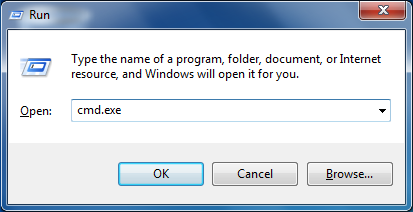
Search for Windows Update - Step #2
Step #3 – A new window will open. Now type PowerShell and press ‘Enter’ key to enter Windows PowerShell mode.
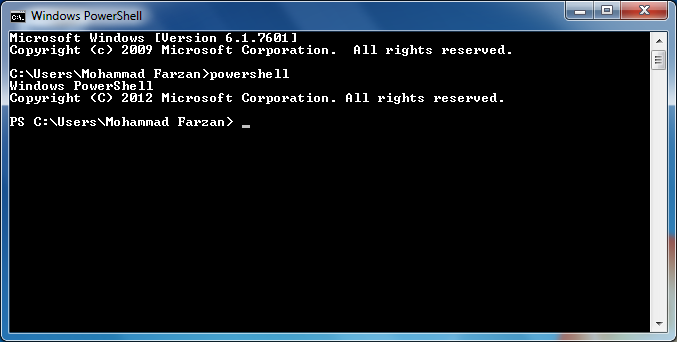
Search for Windows Update - Step #3
Now there are two methods to check whether any of the snooping updates has been installed on your system or not.
If you want to check for updates one-by-one then use Step #4a,
Else, if you want to speed up the searching processes then use Step #4b.
Step #4a – Run the following command to check for a single update. Just change the update code to search for another update.
get-hotfix -id KB3075249
Step #4b – Run the following command to check for multiple updates. You can separate each update with a comma and add as many update numbers that you want to check. Here is an example command to check for four updates:
get-hotfix -id KB3075249,KB3080149,KB2876229,KB2923545
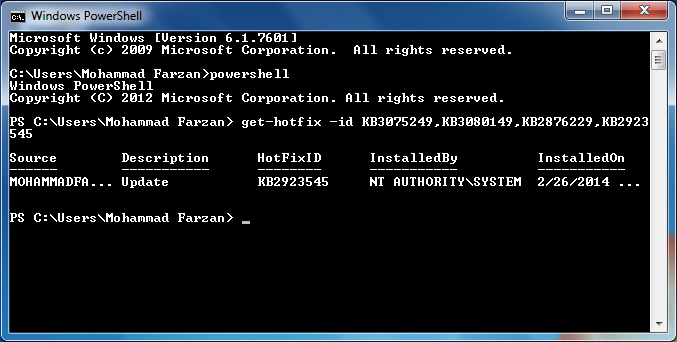
Search for Windows Update - Step #4b
Once the above command is processed successfully and if any update is found then the command prompt will return some information about the update like its source, description, ID and installation date. As shown in the screenshot above.
And in case no update is found on the system then the command prompt will return with some errors written in a red colored text. The error message should read, “Cannot find the requested hotfix.” This shows that the searched update number is not installed on the system. As shown in the below screenshot.
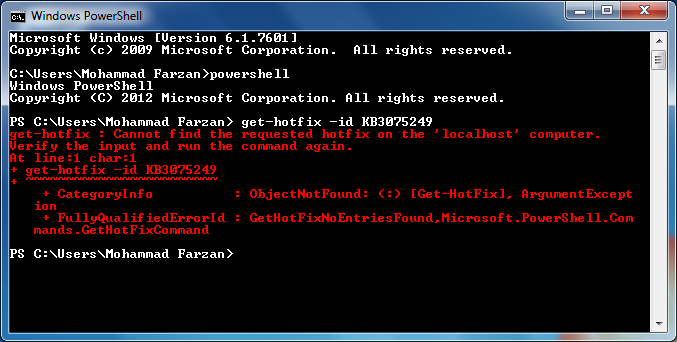
Search for Windows Update - Step #4a
Step # 5 – When you are done with the searching process, type exit and press ‘enter’key to exit from the Windows PowerShell mode.
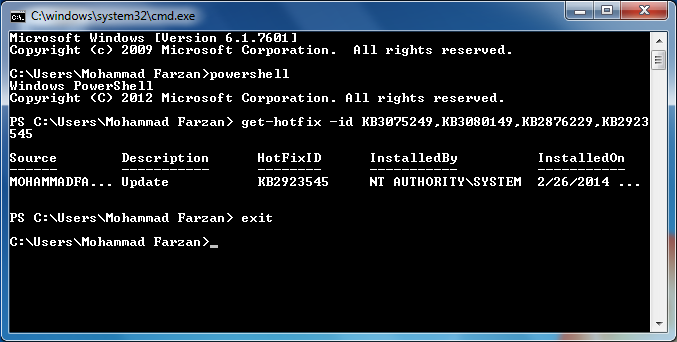
Search for Windows Update - Step #5
HOW TO REMOVE/UNINSTALL SNOOPING WINDOWS UPDATES
If you want to uninstall any update from your system then use the following guide:
DISCLAIMER:
rexsniper.blogspot.com will not be held responsible for any kind of loss or damage to your system caused by the following steps. Proceed at your own risk!
Step #1 – Launch Command Prompt using ‘Windows’ + ‘R’ keys on your keyboard.
Step #2 – In the Command Prompt box, type cmd or cmd.exe and press ‘Enter’ key on your keyboard.
Uninstall Windows Update - Step #2
Step #3 – A new window will open. Execute the following command to uninstall any update from your system. Just change the update number you want to uninstall.
wusa /uninstall /kb:2923545
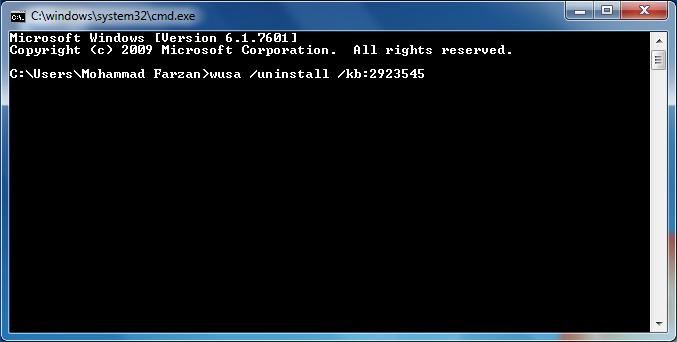
Uninstall Windows Update - Step #3
Step #4 – A new Windows Update Standalone Installer prompt will pop up, asking you if you want to uninstall the following Windows update.
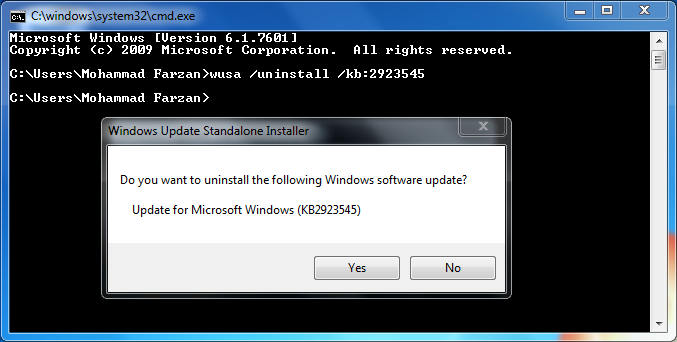
Uninstall Windows Update - Step #4

VMware Workstation 12 Pro Serial Key


VMware Workstation 12
VMware Workstation 12 Pro continues VMware’s tradition of delivering leading edge features and performance that technical professionals rely on every day when working with virtual machines. With support for the latest version of Windows and Linux, the latest processors and hardware, and the ability to connect to VMware vSphere and vCloud Air, it’s the perfect tool to increase productivity, save time and conquer the cloud.
VMware Workstation 12 Pro is the easiest, fastest and most reliable way to evaluate new operating systems, software applications and patches, and reference architectures in an isolated and safe virtualized environment. No other desktop virtualization software offers the performance, reliability, and cutting edge features of Workstation Pro.
Features
  • Built for Microsoft Windows 10 and More
  • Display Powerful 3D Graphics
  • Ready for High Resolution Displays
  • Create Powerful Virtual Machines
  • Ready for the Latest Hardware
  • Enhanced Connectivity
  • Build Virtual Networks
  • Leverage the Power of vSphere and vCloud Air
  • Take Productivity to the Next Level
  • Awesome User Interface
  • Protect Your Work and Save Time
  • Run Restricted Virtual Machines
  • Expiring Virtual Machines
  • Virtual Machine Cross Compatibility
What’s New
  • Ready for Microsoft Windows 10, Ubuntu 15.04, RHEL 7.1, Fedora 22
  • Microsoft DirectX 10 Support
  • OpenGL 3.3 Support
  • 4K Monitor Support
  • Host multi monitor support with different DPI settings
  • Automatic VM suspend upon host shutdown
  • IPv6 NAT Support Yes Tear Away Tabs
  • vCloud Air Power Operations (On, Off, Suspend, Resume)
  • P2V – Migrate Windows 10 PC to VM
  • USB 3.0 Support in Windows 7
  • Over 39 new features
How To Activate ?
  1. Download and Install VMware Workstation 12 From The Links Given Below
  2. Download and Open Serial Key File
  3. Use the Serial Key Given in the File
  4. Done, Enjoy VMware Workstation Pro 12


Screenshot


Downloads

Sunday, 23 August 2015

AUD/USD 24th August 2015 Report

AUD/USD Primary & Weekly cycles

There's still a trend bias to move down into .71 cents (SUPPORT)

How to Add Contact Form on a Blogger/Blogspot BLOG

If you have a BLOG/WEBSITE, it is very important that you should have a CONTACT page on it. It is how visitors, brands, and companies can reach you and it’s something that every blogger should have. If sharing your email address on your blog is not your cup of tea, a contact form can serve as an easy way for others to get in touch.

If you do go the route of using a contact form, we do suggest that you also include an email address on the Contact page as well. You can set one up specifically for your blog if you don’t want your personal email address to be seen. The reason we believe this is so important to offer both options is because most brands and companies will not fill out a contact form to contact you. They usually want to email you through their own email client and add you to their contacts.
To add a Contact Form to Blogger/Blogspot can be done with a few coding tweaks. Blogger/Blogspot actually offers a Free Contact Form for your blog, unfortunately they’ve made it as a Gadget and placed it on the Layout page so that it is added to your sidebar. It is shown below;

Not the ideal place for a contact form, if you ask us ! It should be situated on its own page. Here is how our contact form looks like - BLOGGER ADDICT's Contact Us Form.

So we would like to show you how to set it up in following simple Steps;

Adding a Contact Form to Blogger:

Step 1. – First, go to the Layout page in Blogger and click an Add a Gadget link. From the popup, choose More Gadgets in the sidebar and then select Contact Form and add it. It doesn’t matter where it ends up in your sidebar right now, since we are going to modify that and make it look nice!


Step-2. Now, visit your Dashboard to the left, Template >> Edit HTML page.

Click inside of the editor text area and press CTRL+F (CMD+F on a Mac) and in the search bar type ContactForm then hit enter.

It should find the code below. Click the black down arrow to the left of:

<b:widget id='ContactForm1' locked='false' title='Contact Form' type='ContactForm'>
then click the down arrow again beside:

<b:includable id='main'>
if they are not already open.

Step-3. You will see this code:

<b:includable id='main'>
 
<b:if cond='data:title != &quot;&quot;'>
    <h2 class='title'><data:title/></h2>
  </b:if>
  <div class='contact-form-widget'>
    <div class='form'>
      <form name='contact-form'>
        <p/>
        <data:contactFormNameMsg/>
        <br/>
        <input class='contact-form-name' expr:id='data:widget.instanceId + &quot;_contact-form-name&quot;' name='name' size='30' type='text' value=''/>
        <p/>
        <data:contactFormEmailMsg/> <span style='font-weight: bolder;'>*</span>
        <br/>
        <input class='contact-form-email' expr:id='data:widget.instanceId + &quot;_contact-form-email&quot;' name='email' size='30' type='text' value=''/>
        <p/>
        <data:contactFormMessageMsg/> <span style='font-weight: bolder;'>*</span>
        <br/>
        <textarea class='contact-form-email-message' cols='25' expr:id='data:widget.instanceId + &quot;_contact-form-email-message&quot;' name='email-message' rows='5'/>
        <p/>
        <input class='contact-form-button contact-form-button-submit' expr:id='data:widget.instanceId + &quot;_contact-form-submit&quot;' expr:value='data:contactFormSendMsg' type='button'/>
        <p/>
        <div style='text-align: center; max-width: 222px; width: 100%'>
          <p class='contact-form-error-message' expr:id='data:widget.instanceId + &quot;_contact-form-error-message&quot;'/>
          <p class='contact-form-success-message' expr:id='data:widget.instanceId + &quot;_contact-form-success-message&quot;'/>
        </div>
      </form>
    </div>
  </div>
  <b:include name='quickedit'/>
</b:includable>
Delete everything shown in red so you should just be left with:

<b:includable id='main'></b:includable>
Step-4. Now, do a new search, this time just look for ]]></b:skin> and paste the below provided code directly before it:

/*CUSTOM CONTACT FORM BY ICANBUILDABLOG.COM */
.contact-form-widget {
margin-left:auto;
margin-right:auto;
width: 600px;
max-width: 100%;
padding: 0px;
color: #000;
}
.fm_name, .fm_email {
float:left;
padding:5px;
width:48%
}
.fm_message {
padding:5px;
}
.contact-form-name, .contact-form-email {
width: 100%;
max-width: 100%;
margin-bottom: 10px;
height:40px;
padding:10px;
font-size:16px;
}
.contact-form-email-message {
width:100%;
max-width: 100%;
height:100px;
margin-bottom:10px;
padding:10px;
font-size:16px;
}
.contact-form-button-submit {
border-color: #C1C1C1;
background: ##f6f6f6;
color: #585858;
width: 20%;
max-width: 20%;
margin-bottom: 10px;
height:30px;
font-size:16px;
}
.contact-form-button-submit:hover{
background: ##f6f6f6;
color: #000000;
border: 1px solid #FAFAFA;
}
Step-5. Save the template then go to Pages to create a new Contact page if you haven’t got one already. In the page editor, switch to HTML mode and paste the following:

<div class="widget ContactForm" id="ContactForm1">
<div class="contact-form-widget">
<div class="form">
<form name="contact-form">
<div class="fm_name">
Your Name:
<input class="contact-form-name" id="ContactForm1_contact-form-name" name="name" size="30" type="text" value="" /></div>
<div class="fm_email">
E-mail Address *:
<input class="contact-form-email" id="ContactForm1_contact-form-email" name="email" size="30" type="text" value="" /></div>
<div style="clear:both">
</div>
<div class="fm_message">
Message *:
<textarea class="contact-form-email-message" cols="25" id="ContactForm1_contact-form-email-message" name="email-message" rows="5"></textarea>
<input class="contact-form-button contact-form-button-submit" id="ContactForm1_contact-form-submit" type="button" value="Submit" />
<div class="contact-form-error-message" id="ContactForm1_contact-form-error-message">
</div>
<div class="contact-form-success-message" id="ContactForm1_contact-form-success-message">
</div>
</div>
</form>
</div>
</div>
</div>
 
Step-6. Save your page and view your new contact form ! It should look like this, you can customize as your own:


Since this uses the Blogger Gadget interface, the emails sent using this form will be sent to the email associated with your account. You can change this email address in the Admin settings of your blog.

We hope this tutorial may have helped you in learning How to Add Contact Form on a Blogger/Blogspot BLOG. Share this tutorial with your friends and don't forget to subscribe us. Enjoy !

Friday, 21 August 2015

How to Recover Deleted BLOG

When you can't recover Deleted Blogger Blog ?

The blogger blog which has been deleted for participating in hacking, malware and spam host can't be recovered.

You can't recover blog if recovery period of 90 days are over.

Accidentally deleted your blogger blog? Don't worry because blogger platform helps you to recover your deleted blog with just one click. All the deleted blogger post,comment, pages event which happens due to bog delete will be undone with just one click.Provided you blogger blog should not be deleted for more then 89 day's because once 90 days of blogger blog deletion period is over then it's impossible to recover your blog. Even the sub domain of your blogspot blog will be deleted from your account and will be available for other blogger to register it.If your delete blogger blog is under recovery period then only you can recover it.
Bloggers are increasing across the world in a huge number in daily basis. Most of the blogs are violating copyrights, Only few blogs are running genuinely. The blogs, Which are running with Copied content, illegal material..etc., will be deleted due to DMCA.

Google only deletes the blogs, which are violating Blogger and DMCA terms permanently without any Notification. Most of the blogs are deleted in a monthly basis, sometimes genuinely and sometimes mistakenly. If you are sure that, your blog is deleted mistakenly, don't worry ! you can recover your blog easily. If your blog is deleted due to copyright violation, your blog will not be back. Be patience, there are several ways to get your blog back, if your blog is deleted mistakenly. Just follow below steps:

Step-1. Contact Blogger Team

Send a counter notice to Blogger team and mention everything about your blog in a peaceful manner. You have to submit your Name, Email, Phone Number, Blog Address (Not custom domain, Provide your blogspot address) and signature in the following form.
Contact Blogger Team

Step-2. Send a Spam Appeal

If you have not received any response by contacting Blogger Team, Then submit an appeal by using this Secret form.
Request Blogger team to take you seriously

Step-3. Post a thread at Blogger Help Forums

Post your appeal in a peaceful manner with exact details at Blogger Help Forums. Click the following link and make a thread there.
Blogger Help Forums

Step-4. Visit Google Customer Service Center

You can consult GCSC (Google Customer Service Center) office located at your local town or city. If you are running your blog officially with huge number of followers, Consult a GCSC office which is located nearer to your area. All GCS Centers across the world are located in the below page.
List of Google Customer Services Centers across the world

Why a Blog Deletes, even though the Blog is running Genuinely ?

Every day, Google receives a big number of DMCA complaint reports. Blogger team verifies their level the best and takes an action against the infringed URL. Some of hackers sends false claims with neat presentations to confuse Blogger team. If blogger team confuses, Then your content will deletes. If you are sure that, Your content is legal, Then you can re-appeal to Blogger team from the mail, Which you receives after the deletion of the content. If your blog receives many false claims at a time and Blogger team confuses, Then your blog will deletes.

So, Blogger giving an opportunity for genuine bloggers to restore their blogs back. Just follow the above steps. If you ran your blog officially, without violating Blogger terms, Your blog will definitely backs.

Doubts ?

After submitting an appeal to Blogger Team, Give at least 24-48 hours to google. If your blog is not restored, Then only go to step 2. Many people restored their little baby without any loss. If your blog is not back from all the three steps, Go to the fourth step. Then you can know the full details. Please note that, Don't make any false claims. That will lead to suspension of your Blogger account!

If you have still any doubts regarding this, Feel free to ask below by adding a comment.