Friday, 14 August 2015

How to Create a Border Around a Post in Blogger


Your Blogger account gives you tools to style your posts, but you can take this a step further by creating a border around your content. A border provides an outline that spans the length of your post, adding a nice touch. Your border can be any size, style or color you wish so it stands out, ensuring your customers won't miss important announcements. Blogger gives you direct access to your post's HTML code. Edit this code to create an eye-catching border around your blog post.

Also Read: How to Add Border around Post Images on Blogger/Blogspot

Create A Border Around A Post In Blogger:

Step 1: Navigate to the Blogger website and sign in to your account.
Step 2: Click the blog post that you want to edit or click the "Create New Post" button.
Step 3: Click the "HTML" button on the top left corner of the screen.
Step 4: Enter the code <div style="border: 1px solid black; padding: 10px;">as the opening tag for the post around which you want to create the border.
Step 5: Substitute the number after the "border" property with the value of the width you want your border to be.
Step 6: Substitute the "solid" value with dashed, groove, ridge, inset, double or outset depending on what type of border you want around your post.
Step 7: Substitute the "black" with the color that you want your border to be. Values can be either the name of the color such as red, blue, green, yellow or the hex color code, such as #C92020.
Step 8: Substitute the number after the "padding" property with the value of the distance you want your post content to be from the border line.
Step 9: Enter the </div> tag to close the code section. For example to create a dashed, yellow border that is 5px in width and has a padding of 10px, the code would be as follows:<div style="border: 5px dashed yellow; padding: 10px;"> </div>
Step 10: Click the "Compose" button at the top of the page to view your borders. You can now add your content inside the new borders if it is a new post.
Step 11: Click the "Preview" button to see a preview of how your post with the border around it will appear when published.
Step 12: Click the "Publish" button if you are satisfied with the results and want to publish it to Blogger.

How to make an automatic Carousel slider based on labels?

Welcome to all, we will discuss how to create automatic Carousel slider based on your labels in blogger. All you have to do is only replace with your own label and the slider will work based on the label that you add in Edit HTML template. This widget "carousel slider" we made is very simple and we only used jCarousellite script without adding easing effects or mousewheel.

Step-1. You must login to blogger with your account.
Step-2. After that select the blog that you want to add slider.
Step-3. Go to the template >> Edit HTML and check the expand widget templates, don't forget to backup your template first.
Step-4. And then place this following codes above ]]></b:skin>:
#carousel{width:950px;height:185px;margin-bottom:0px;position:relative;display:block}
#carousel .container{position:absolute;left:49px;width:895px;height:185px;overflow:hidden;background:url(https://blogger.googleusercontent.com/img/b/R29vZ2xl/AVvXsEgpTGA4AlHNe7wyjxS6DnuUDj0L9citFop5a_b_Br_T80n_cnubC79896GzCq3Z50q0w3gfO4LdXcLSEg94y6Wd6fBKgL9IXG6ydz6QygbpOj7FecTF63t_6COOxdbGKCDn5n1-Sd-s1os/s1600/scroller-bg.png) repeat center}
#carousel #previous_button{position:absolute;width:49px;height:185px;background:url(https://blogger.googleusercontent.com/img/b/R29vZ2xl/AVvXsEjjsXrcGXeVsHV6ZljFsh4jl3TBm5B5sXdoGCS7ynRA5q19E5GydoKEbbOI3pfN-6w9UmJrDGoY_lXc93fOU6AIZFGrBwKZxeVZdmlJBh9qD1kxlnP2KroXyejeFo2L_S6ueiIa7yBUCEs/s1600/prev.png) center;z-index:100;cursor:pointer;border-right:1px solid #ccc}
#carousel #previous_button:hover{background:url(https://blogger.googleusercontent.com/img/b/R29vZ2xl/AVvXsEjdFe2e8PU8JBd7X_ksc3yhnowkYAsw_HaG5TCZ6-uFR71dhsR8A3G4RpFza-n9enBNrwejcTGdswJ0cr1RfSc_g3t8GrFcElfjzyw2dEiSJX3n6ManGJKdNYu1kXBS5X9kxnNa1OFYEPc/s1600/prev.png) center}
#carousel #next_button{position:absolute;right:0;width:49px;height:185px;background:url(https://blogger.googleusercontent.com/img/b/R29vZ2xl/AVvXsEhpWUmBNuDI7a2hgNLt9YC6d9tgK_HzCNmh5YWVUQTzz7XRiXmTow9_pIDYeZV0KTEeuc6u3t4x3j_yjbKw1Yt8K4zXMyxJwVOodfATEVSdxrvgP-bTFXhrW3n-58edH0UcL8ntY8KB-DA/s1600/next.png) center;z-index:100;cursor:pointer;border-left:1px solid #ccc}
#carousel #next_button:hover{background:url(https://blogger.googleusercontent.com/img/b/R29vZ2xl/AVvXsEhqHkOgjLJ-olo-7ytey4cvVJQ0YJMcvyuio1XPt0Nfh2kd5B9kqhDgT6nDeYx77ezOPFtRrJoA-7YMQNiyNWR4J2ndIXVRP6zJ4lxbv7jKfbW9gfY6KKH9NpLFbPx7hvxaxR08t9b3Cbc/s1600/next.png) center}
#carousel ul{width:100000px;position:relative;margin-top:10px}
#carousel ul li{background:#fff url(https://blogger.googleusercontent.com/img/b/R29vZ2xl/AVvXsEi2VdPNlP1d-vZ3r1CBhOyQFy5ldVXtEg1bTE0WPFfSMcP-4NA2j7lTuw4Ff7QBYLQiAC8a5qnRwm2FMmlTQeZeWjUQQ8EYXOqzz51jwRQdB-C9jspueikow6x8wJ51kJRE3cMhGnNNjL4/s1600/main.png) repeat-x top;display:inline;float:left;text-align:center;font-weight:700;font-size:.9em;line-height:1.2em;border:1px solid #ccc;width:145px;height:150px;margin:0 4px 20px 7px;padding:6px;-webkit-border-radius:4px;-moz-border-radius:4px;border-radius:4px;}
#carousel ul li:hover{filter:alpha(opacity=75);opacity:.75;}
#carousel ul li a.slider_title{color:#222;display:block;margin-top:5px}
#carousel ul li a.slider_title:hover{color:#cd1713}
#carousel a img{display:block;background:#fff;margin-top:0}
Look at some codes with the red color above, that's the width and height of the slider in the demo that we made, change with your own size depend on your template width.

Step-5. Still in Edit HTML, add this following code above </head> :
<script src='http://ajax.googleapis.com/ajax/libs/jquery/1.7.2/jquery.min.js' type='text/javascript'/>
<script src='https://masolis-javascript.googlecode.com/svn/trunk/carousellite.js' type='text/javascript'/>
<script type='text/javascript'>
//<![CDATA[
imgr = new Array();
imgr[0] = "https://blogger.googleusercontent.com/img/b/R29vZ2xl/AVvXsEiK98kOT7EEOPhbfNqf92ZXpV1FAoa9ZcwkCCpmT_1l2U7TDAq8oN_ROyAI6HFXAhIhDPi5xgpSY4PuG_J9byhsKfndGtkrHwMbCrpvqw6yxXTgivyRO8pckjjJNRNY9XOWPR2qL4Yebyg/s1600/no+image.jpg";
showRandomImg = true;
aBold = true;
summaryPost = 140;
summaryTitle = 25;
numposts1 = 15;
label1 = "news";
function removeHtmlTag(strx,chop){
var s = strx.split("<");
for(var i=0;i<s.length;i++){
if(s[i].indexOf(">")!=-1){
s[i] = s[i].substring(s[i].indexOf(">")+1,s[i].length);
}
}
s = s.join("");
s = s.substring(0,chop-1);
return s;
}
function showrecentposts(json) {
j = (showRandomImg) ? Math.floor((imgr.length+1)*Math.random()) : 0;
img = new Array();
document.write('<ul>');
for (var i = 0; i < numposts1; i++) {
var entry = json.feed.entry[i];
var posttitle = entry.title.$t;
var pcm;
var posturl;
if (i == json.feed.entry.length) break;
for (var k = 0; k < entry.link.length; k++) {
if (entry.link[k].rel == 'alternate') {
posturl = entry.link[k].href;
break;
}
}
for (var k = 0; k < entry.link.length; k++) {
if (entry.link[k].rel == 'replies' && entry.link[k].type == 'text/html') {
pcm = entry.link[k].title.split(" ")[0];
break;
}
}
if ("content" in entry) {
var postcontent = entry.content.$t;}
else
if ("summary" in entry) {
var postcontent = entry.summary.$t;}
else var postcontent = "";
postdate = entry.published.$t;
if(j>imgr.length-1) j=0;
img[i] = imgr[j];
s = postcontent ; a = s.indexOf("<img"); b = s.indexOf("src=\"",a); c = s.indexOf("\"",b+5); d = s.substr(b+5,c-b-5);
if((a!=-1)&&(b!=-1)&&(c!=-1)&&(d!="")) img[i] = d;
//cmtext = (text != 'no') ? '<i><font color="'+acolor+'">('+pcm+' '+text+')</font></i>' : '';
var month = [1,2,3,4,5,6,7,8,9,10,11,12];
var month2 = ["Jan","Feb","Mar","Apr","May","Jun","Jul","Aug","Sep","Oct","Nov","Dec"];
var day = postdate.split("-")[2].substring(0,2);
var m = postdate.split("-")[1];
var y = postdate.split("-")[0];
for(var u2=0;u2<month.length;u2++){
if(parseInt(m)==month[u2]) {
m = month2[u2] ; break;
}
}
var daystr = day+ ' ' + m + ' ' + y ;
var trtd = '<li class="car"><div class="thumb"><a href="'+posturl+'"><img width="145" height="100" class="alignnone" src="'+img[i]+'"/></a></div><p><a class="slider_title" href="'+posturl+'">'+posttitle+'</a></p></li>';

document.write(trtd);
j++;
}
document.write('</ul>');
}
//]]>
</script>
Notes: See the red URL script above, that's the latest series jQuery.min.js script code that we use to made this slider. And if you've found jQuery.min.js although with the different series in your template, no longer need to insert the red codes. There must be only one jQuery.min.js in your template, it is up to the serial number, if possible the latest version.
Blue code (15) : amount of your post that display in the slider. news was a label that I choose to show up in slider.

Step-6. Next step you must call the slider to appear in your blog. Place this following code above <div id='main-wrapper'>:
<b:if cond='data:blog.pageType != &quot;item&quot;'>
<div id='carousel'>
<div id='previous_button'/>
<div class='container'>
<script>
document.write(&quot;&lt;script src=\&quot;/feeds/posts/default/-/&quot;+label1+&quot;?max-results=&quot;+numposts1+&quot;&amp;orderby=published&amp;alt=json-in-script&amp;callback=showrecentposts\&quot;&gt;&lt;\/script&gt;&quot;);
</script>
<div class='clear'/>
</div>
<div id='next_button'/>
</div>
<script type='text/javascript'>
(function($) { $(document).ready(function(){
$(&quot;#carousel .container&quot;).jCarouselLite({
auto:4000,
scroll: 1,
speed: 800,
visible: 5,
start: 0,
circular: true,
btnPrev: &quot;#previous_button&quot;,
btnNext: &quot;#next_button&quot;
});
})})(jQuery)
</script>
</b:if>
You can also put the following codes in the bottom of your navigation menu or you can also placed in your footer side, that's depend on your needs.

Step-7. The final step, 'Save templates' and see the results.

Subscribe Us or like us on Facebook if this tutorial really helped you. Don't miss to apply this automatic Carousel Slider in your blogger template. If you have any queries, just drop the comment in comment section. Enjoy!

How to Remove “Powered By Blogger” Attribution Widget ?

Today we can give you the easiest method that “How to Remove Powered By Blogger Attribution Widget from Blogger/Blogspot ?”. This is not a Difficult Stuff that How to Remove Powered by Blogger Attribution widget from Blogspot. We have seen many bloggers who were tired of/irritated from this because it is seen on the Blogger label that cause blog not Looking Professional. That is why they want to Remove it. One More thing to remember, In Blogger Layout the “remove” option is disable by default in all blogger templates. But now in Templates you can Remove this Widget by your Self. Lets do some practice guys:

Remove "Powered By Blogger" Attribution Widget ?

Step-1. Firstly Open you Blogger Account and Choose that Blog you want to Remove the Attribute Widget.

Step-2. Now Go to Template >> HTML In this Section you see “Jump to Widget” Option Click on it and Choose “Attribution1″ Widget and it will automatically Point to that Line.

Step-3. Now Press CTRL+F and Search for this Below Line.<b:widget id=’Attribution1′ locked=’true’ title=” type=’Attribution’>

Step-4. Now, Time to remove This. Just Replace ‘true’ with ‘false’ Like we Demonstrate in Above Screenshot.

Step-5. After this Your Code looks Like : <b:widget id=’Attribution1′ locked=’false’ title=” type=’Attribution’>.

Step-6. Save Your Template and Go To Blogger Dashboard >> Layout.

Step-7. See the Attribute Widget in Layout and Click Edit and Now Remove Option will Appear in Attribute Widget. Simply Click On Remove Button and remove Your “Powered By Blogger” Attribution Widget.

Now Click on View and Preview your Blog. Now you notice that “Powered by Blogger” Attribution is Removed. It is mainly set by Blogger in Default and in Disable Remove Permission for this Widget.

If this Article is Helpful for you, Please subscribe and share you Experience Below in Comments.

How to create Random posts widget with image thumbnails and snippets for Blogger

You know that Visitors to your website is very important. When your blog has too many posts, visitors don't always have much time or desire to through all the posts written there in order to make an idea of the blogs content. So, an advance Random Posts widget that will allow visitors to find content more easily could be really useful. This tutorial will show you how to add a random posts widget to display a list of posts in a random order with thumbnails and excerpts/snippets.
Adding RANDOM POSTS With Thumbnails And Posts Summary (Snippets) On Blogger:

Step-1. Login to your blogger account, select your blog and go to Layout.
Step-2. Add new widgets by clicking on the Add a gadget link and select Html/JavaScript from the popup window.
Step-3. After adding the Html/JavaScript you need to copy the following script and paste it in the Content box.
<style>
#random-posts img {
border: 1px #eeeeee;
float: left;
margin-right: 5px;
width: 50px;
height: 50px;
background-color: #F5F5F5;
padding: 3px;
transition: all 0.2s linear 0s;
}
#random-posts img:hover {
opacity: 0.6;
}
ul#random-posts {
list-style-type: none;
padding: 0px;
}
#random-posts a {
font-size: 10px;
text-transform: uppercase;
padding: 0px auto 5px;
}
#random-posts a:hover {
text-decoration: none;
}
.random-summary {
font-size: 11px;
background: none;
padding: 5px;
margin-right: 8px;
}
#random-posts li {
margin-bottom: 10px;
border-bottom: 1px solid #EEEEEE;
padding: 4px;
}
</style>
<ul id='random-posts'>
<script type='text/javaScript'>
var randomposts_number = 5;
var randomposts_chars = 50;
var randomposts_details = 'no';
var randomposts_comments = 'Comments';
var randomposts_commentsd = 'Comments Disabled';
var randomposts_current = [];
var total_randomposts = 0;
var randomposts_current = new Array(randomposts_number);
function randomposts(json) {
total_randomposts = json.feed.openSearch$totalResults.$t
}
document.write('<script type=\"text/javascript\" src=\"/feeds/posts/default?alt=json-in-script&max-results=0&callback=randomposts\"><\/script>');
function getvalue() {
for (var i = 0; i < randomposts_number; i++) {
var found = false;
var rndValue = get_random();
for (var j = 0; j < randomposts_current.length; j++) {
if (randomposts_current[j] == rndValue) {
found = true;
break
}
};
if (found) {
i--
} else {
randomposts_current[i] = rndValue
}
}
};
function get_random() {
var ranNum = 1 + Math.round(Math.random() * (total_randomposts - 1));
return ranNum
};
</script>
<script type='text/javaScript'>
function random_posts(json) {
for (var i = 0; i < randomposts_number; i++) {
var entry = json.feed.entry[i];
var randompoststitle = entry.title.$t;
if ('content' in entry) {
var randompostsnippet = entry.content.$t
} else {
if ('summary' in entry) {
var randompostsnippet = entry.summary.$t
} else {
var randompostsnippet = "";
}
};
randompostsnippet = randompostsnippet.replace(/<[^>]*>/g, "");
if (randompostsnippet.length < randomposts_chars) {
var randomposts_snippet = randompostsnippet
} else {
randompostsnippet = randompostsnippet.substring(0, randomposts_chars);
var whitespace = randompostsnippet.lastIndexOf(" ");
randomposts_snippet = randompostsnippet.substring(0, whitespace) + "&#133;";
};
for (var j = 0; j < entry.link.length; j++) {
if ('thr$total' in entry) {
var randomposts_commentsnum = entry.thr$total.$t + ' ' + randomposts_comments
} else {
randomposts_commentsnum = randomposts_commentsd
}; if (entry.link[j].rel == 'alternate') {
var randompostsurl = entry.link[j].href;
var randomposts_date = entry.published.$t;
if ('media$thumbnail' in entry) {
var randompoststhumb = entry.media$thumbnail.url
} else {
randompoststhumb = "https://blogger.googleusercontent.com/img/b/R29vZ2xl/AVvXsEgR2bMmH85yjxR6WYQiOFkDC1Eebws0L74hgGS-6h0r2KCSIrid40A4OJgnNoym6vU8yi-3zxRftySJB_hvz14ViNbS79KDE-DdUw2tk8b-y8Sjd_6VPgOwvoWAbZp9hfPz0bTnQ-06vlM/s1600/no_thumb.png"
}
}
};
document.write('<li>');
document.write('<a href="' + randompostsurl + '" rel="nofollow"><img alt="' + randompoststitle + '" src="' + randompoststhumb + '"/></a>');
document.write('<div><a href="' + randompostsurl + '" rel="nofollow">' + randompoststitle + '</a></div>');
if (randomposts_details == 'yes') {
document.write('<span><div class="random-info">' + randomposts_date.substring(8, 10) + '.' + randomposts_date.substring(5, 7) + '.' + randomposts_date.substring(0, 4) + ' - ' + randomposts_commentsnum) + '</div></span>'
};
document.write('<br/><div class="random-summary">' + randomposts_snippet + '</div><div style="clear:both"></div></li>')
}
};
getvalue();
for (var i = 0; i < randomposts_number; i++) {
document.write('<script type=\"text/javascript\" src=\"/feeds/posts/default?alt=json-in-script&start-index=' + randomposts_current[i] + '&max-results=1&callback=random_posts\"><\/script>')
};
</script></ul>
Random Post Option:

- Thumbnail Dimensions: to change the size of the thumbnails in pixels, replace the 50px value.
- Summary length: you can control the length of the summary (in characters) by changing the 50 value from var randomposts_chars=110;
- Post info: if you want to show the post date and comment count, change 'no' from var randomposts_details='no'; to 'yes';
- Font Size for Posts Titles and Summary: to modify the font size for the post snippet, modify the 11px value and for the posts title, the 10px value;

Click on the Save button and View your blog. The sidebar will display a random posts widget on each of your blog pages.

Enjoy !

Wednesday, 12 August 2015

How to Setup Google Sitemap Online

Basically, a sitemap is a page on your site that helps search engines find the content on your site. It’s kind of like it sounds; it’s a map of your site.

We are going to walk you through the different parts of the sitemap and explain what they mean.

All the way to the left, you have the URL section. That is just a list of URLs on your site that you want search engines to find.

Then you have the Priority area. That basically tells search engines which pages on your site are most important. In theory, pages that have a priority of 100 percent are more likely to be indexed than pages with a priority of 20 percent, although not everyone in SEO agrees that that’s the case.

Then, we have Change Frequency. This is how often you tend to update each of the pages on your website. Under Last Change, that tells search engines when the last time a significant change was made to that page.

How do you set up your site map, and how do you submit it to search engines? If you’re using WordPress, your first step is to install a plugin that would create a site map for you. Log in to your WordPress dashboard, hover over Plugins and click on Add New. Then, under Search, put in Google XML, and click on Search Plugins. Under Google XML Sitemaps, you want to install it. We’ve already installed it, obviously, but you would just click Install and activate it.

Once you do that, hover over Settings in the sidebar and click on XML Sitemap.

In general, you don’t want to make too many changes to the plugin, because the way it’s set up is actually how you want it. We are going to walk you through each section of the plugin, in case you do need to make any changes.

Under the top you have the URL of your sitemap, which is important to keep in mind. For most sites, it’s site.com/sitemap.xml. Then it tells you when it was last updated. If for some reason it was out of date, you can click the Rebuild the Sitemap button, and that will rebuild the site map based on the changes that you just made.

Under Basic Option, by default it writes it as a normal XML file, which is the standard language for sitemaps, so you do want to keep that the same. It also writes a gzip file, which just makes that page a little bit smaller.

Under Additional Pages, you can add pages to your sitemap manually that for one reason or another aren’t being added when you create the sitemap. If you have a subdirectory on your site, and it’s not being added to the sitemap, you can add that manually. Just click on Add New Page and include the URL, the priority from 10% to 100%, how often that page is updated, and then the date that it was last changed.

Under Post Priority, they actually prioritize your pages or posts based on how many comments it gets, which is one way to do it. It’s not the best, but there’s no perfect system for establishing priority so We usually leave this by default. Let’s say, if you don’t have a blog and you’re running WordPress for some different reason, and you don’t get comments, this obviously doesn’t make sense. You’d want to choose Do Not Use Automatic Priority Calculation. Because We are running a blog, We’ll keep it at Comment Count.

For the location of your sitemap file by default, like We’d said, it’s /sitemap.xml, but if for some reason you want to change that, you can choose Custom Location and add a URL that works better for you. We are going to keep it by default.

Under Sitemap Content, if there are pages or sections of your site that you really want indexed, let’s say you have a bunch of authors on your site and you want their pages to be indexed, you can include those author pages in the sitemap, and they’re more likely to be indexed by Google.

On the other hand, if you have excluded items, if you have pages on your site that you don’t want to get indexed like a membership area, or private pages for internal use, you can always create a category like Members Only or something like that. Click it here, and when you save your settings all the pages under that category won’t be added to the sitemap.

Once you have your sitemap set up like you want it, you want to note the URL of your sitemap. Then, head over to Google Webmaster Tools. Once you log in to Google Webmaster Tools, this is what you’ll see. This is important, because setting up your sitemap isn’t enough. You also want to submit it to Google to let them know that it’s there and to see if there are any issues.

Once you log into Webmaster Tools, click on Crawl, then click on Sitemaps, then click on Add Test Sitemap, and then put in the URL. We set it to sitemap.xml and click on Test Sitemap, then click on View Test Result.

Setup Google SITEMAP:

Below is done for you:
You will find various SITEMAP GENERATOR, beside that we used below - click on link.
Step-1. Go to SITEMAP GENERATOR here
Step-2. Enter required details for SITEMAP generation as shown below


Enter the full http address for your site, only the links within the starting directory will be included. LIKE - http://addictofblogging.blogspot.com, And then click on Start - By this Only maximum 500 pages will be indexed in your Sitemap.

Step-3. After this, it will take few minutes to generate sitemap. Now it will be seen like this -


Step-4. Once Sitemap is generated, just copy the Sitemap i.e. which is highlighted snapshot in Step-3.

Now you should have gmail account, if not don't worry - go here and Sign Up.Once you have created account in google, go here - google webmaster tool . As shown below;


Step-5. Next, you will reach at Google Webmaster Tool DASHBOARD


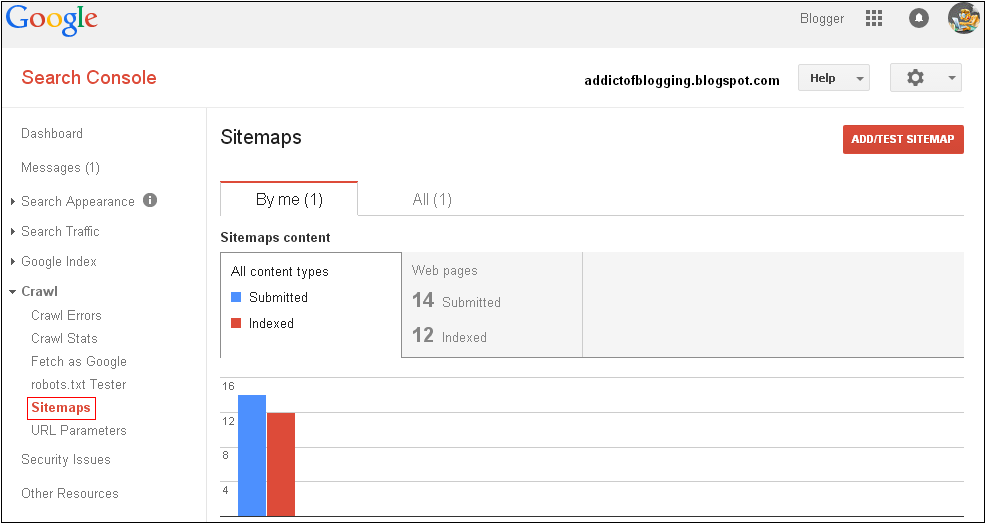
Step-6. Reaching to DASHBOARD, just click on "Sitemaps" as shown below. Note: Our Blog's Sitemap was already indexed. Hence it has shown the Sitemap, Web pages - Submitted - 14 and Indexed - 12.


Step-7. Now move to right up corner, you will find (ADD/TEST SITEMAP)


Step-8. Just click on ADD/TEST SITEMAP


Step-9. Once you click on SUBMIT SITEMAP, the screen you need will appear


Hurray, now you have got what you need right ! To remember - it will take time to be indexed - In above screenshot, our blog's sitemap has already been Indexed. Web Pages submitted - 14 and Indexed - 12.

Once indexed, you are a Genius. Enjoy !