Saturday, 11 August 2018

[Fixed] Fortnite Android All Problems 'Device Not Supported' And '2GB RAM' Problem without Root

In this Tutorial I am Gonna to teach You "HOW TO FIX FORTNITE ANDROID DEVICE NOT SUPPORTED ALL PROBLEMS"


So Just Follow My Steps.
  1. First Download Fortnite Android APK from the link in the end of this Post.
  2. And Turn on Unknown source in your Android Phone.
  3. Install the APK And Turn on internet Connection And Wait For A minutes for Downloading Data files.
  4. And after Downloading Data Completed Enjoy The Game.
  5. If Your Device Gives Lags Reduce Graphics Settings to Low.
Note. First Tap On Any Blue Button Otherwise You can't See Download Links.

AND THIS APK ISN'T WORKING FOR YOU COMMENT ME.


AND WATCH THIS VIDEO TUTORIAL.
DOWNLOAD LINK (OUTDATED)
DOWNLOAD LINK (UPDATED)

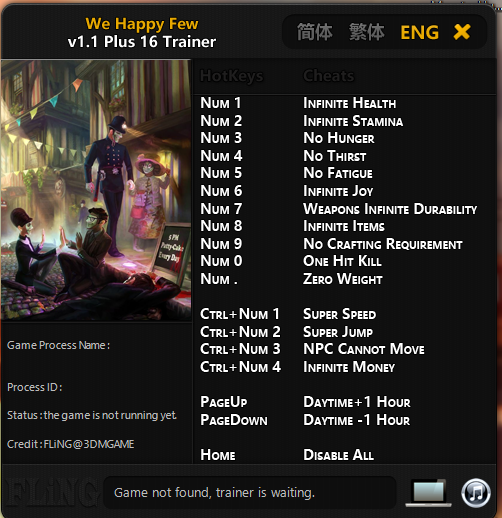
Trainer We Happy Few


------------------------DONLOAD
--------------------------DONLOAD


 -------------------------DONLOAD

Trainer Monster Hunter World


------------------------DONLOAD
--------------------------DONLOAD


 -------------------------DONLOAD

How to create a Timer with Start Stop Buttons in Javascript

Calculating time in seconds or milliseconds is sometimes necessary in javascript programming, especially if you are creating some games or animation. This page contains a simple code of javascript timer with "Start" and "Stop" buttons. If you have some basic knowledge of JS Programming then you will easily understand the logic behind it. You may utilize it to make your own timer with little bit of change in coding as per your requirement.

Running version of Script:

0 Seconds

Code:
<div>
    <input id="btnStart" type="button" value="Start" onclick="timestart();" />
    <input id="btnStop" type="button" value="Stop" onclick="timestop();" />
     <h3><span id="timer">0</span> Seconds</h3>
</div>
<script type="text/javascript">
        var check = null;
        var timespent=0;
        var displayfrequency=100; // in milliseconds
        var decimalplaces=1;  // seconds to be displayed in points
        function timestart() 
        {
              var startTime = Date.now();
              check = setInterval(function () {
              var elapsedTime = Date.now() - startTime;
              document.getElementById("timer").innerHTML = (elapsedTime / 1000).toFixed(decimalplaces);
                  }, displayfrequency);
        }

        function timestop() 
        {
            clearInterval(check);
            timespent=document.getElementById("timer").innerHTML;
        }
    </script>

In the above script variable displayfrequency can be adjusted to change the duration after which time displayed in changed. Similarly decimalplaces can be adjusted to change the decimal point of seconds dispalyed. Just play by changing these values and you will understand their usage.

LINK YOUR ADSENSE ACCOUNT WITH GOOGLE ANALYTICS FOR HIGHER CPC RATES


 LINK YOUR ADSENSE ACCOUNT WITH GOOGLE ANALYTICS FOR HIGHER CPC RATES

YES, THIS IS THE LATEST SIMPLE TRICK I APPLIED LAST MONTH AND GOT AN INCREASED CPC RATESREFLECTED IN MY ADSENSE PERFORMANCE REPORT. IN GOOGLE ANALYTICS ADSENSE REPORT YOU WILL FIND THE PARTICULAR WEBPAGE WHICH GETS MORE CLICKS APART FROM THE SOURCES GENERATING MORE REVENUE FOR YOUR SITE.
THAT MEANS YOU MAY FILTER THE REPORT TO FIND OUT WHICH WEBPAGE HAVE GREATER CPC RATES IN COMPARE TO OTHERS USING MS EXCEL. THUS, YOU HAVE TO WRITE MORE CONTENTS RELATED TO THAT PARTICULAR WEBPAGE TOPIC WHICH HAS HIGHER CPC RATES. HOWEVER, IF YOU ARE NOT FAMILIAR WITH MS-EXCEL THEN HIRE ME AT A REASONABLE COST.